
Get the Meta credentials
Facebook Login and Facebook Events use the same Meta app. This guide explains where to find each value in the Meta panels. Each module also has its own configuration, explained on its page: Facebook Login and Facebook Events.
Where each value is
Section titled “Where each value is”| Value | Where to find it |
|---|---|
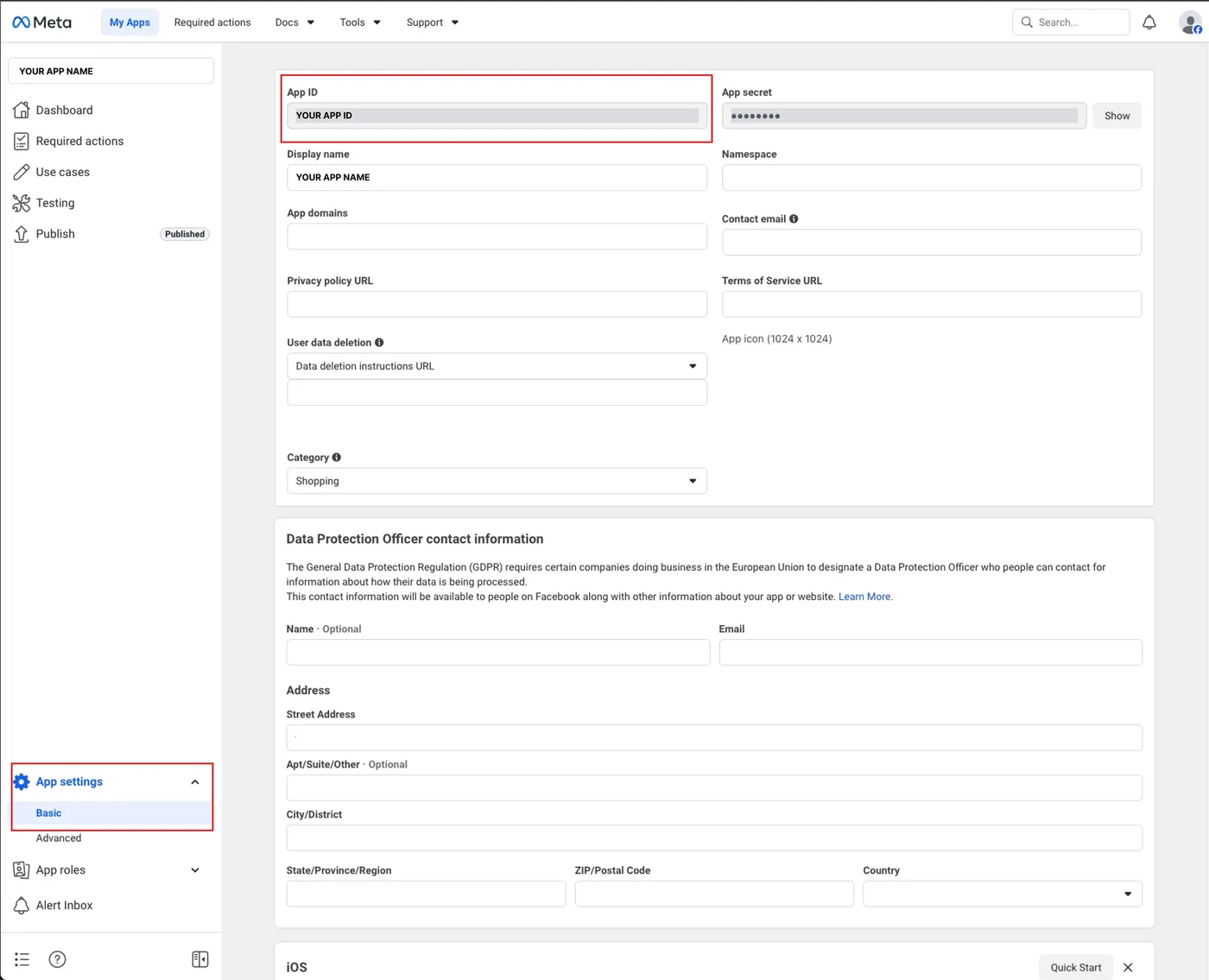
| App ID | developers.facebook.com → Settings → Basic |
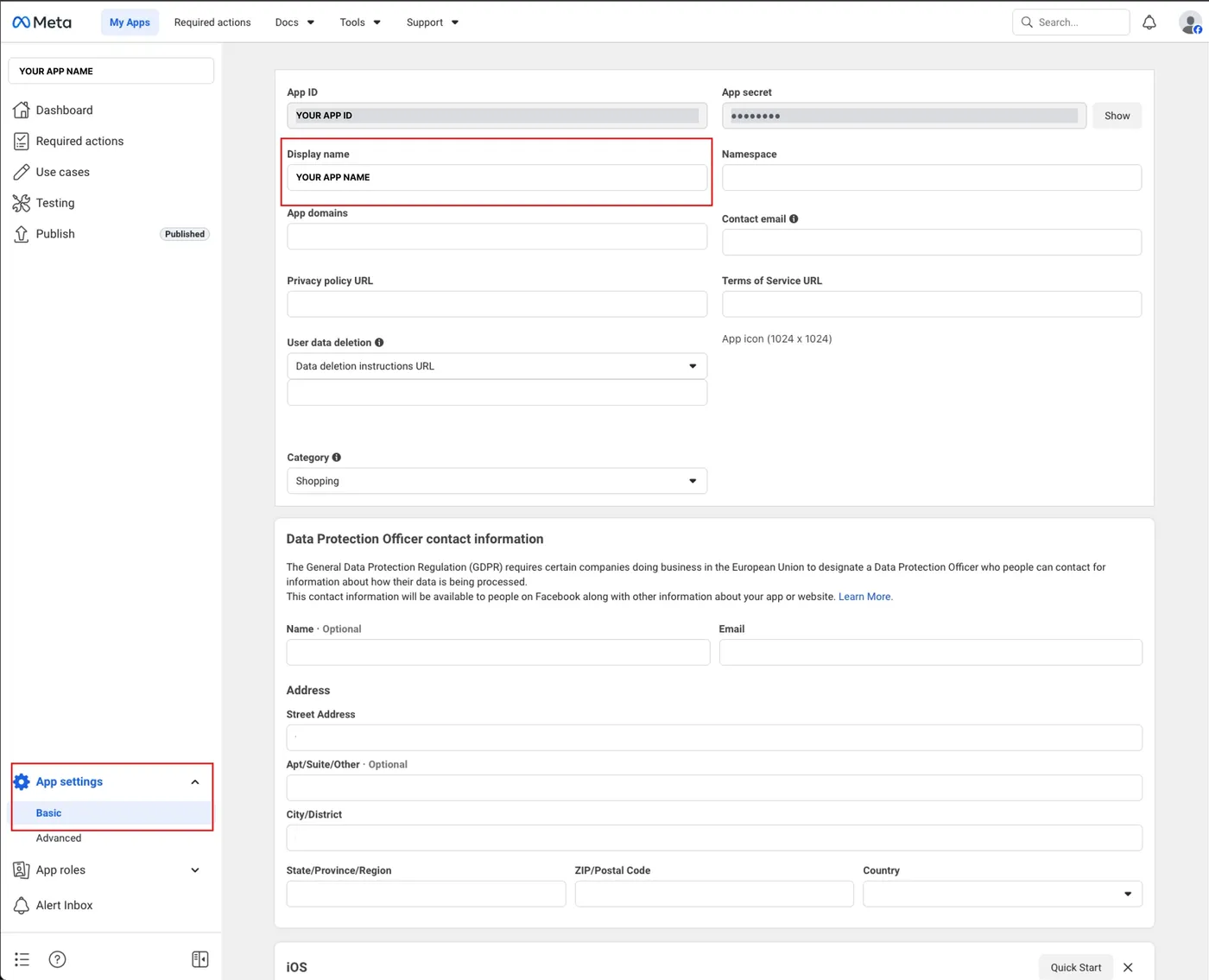
| App name | developers.facebook.com → Settings → Basic → Display name |
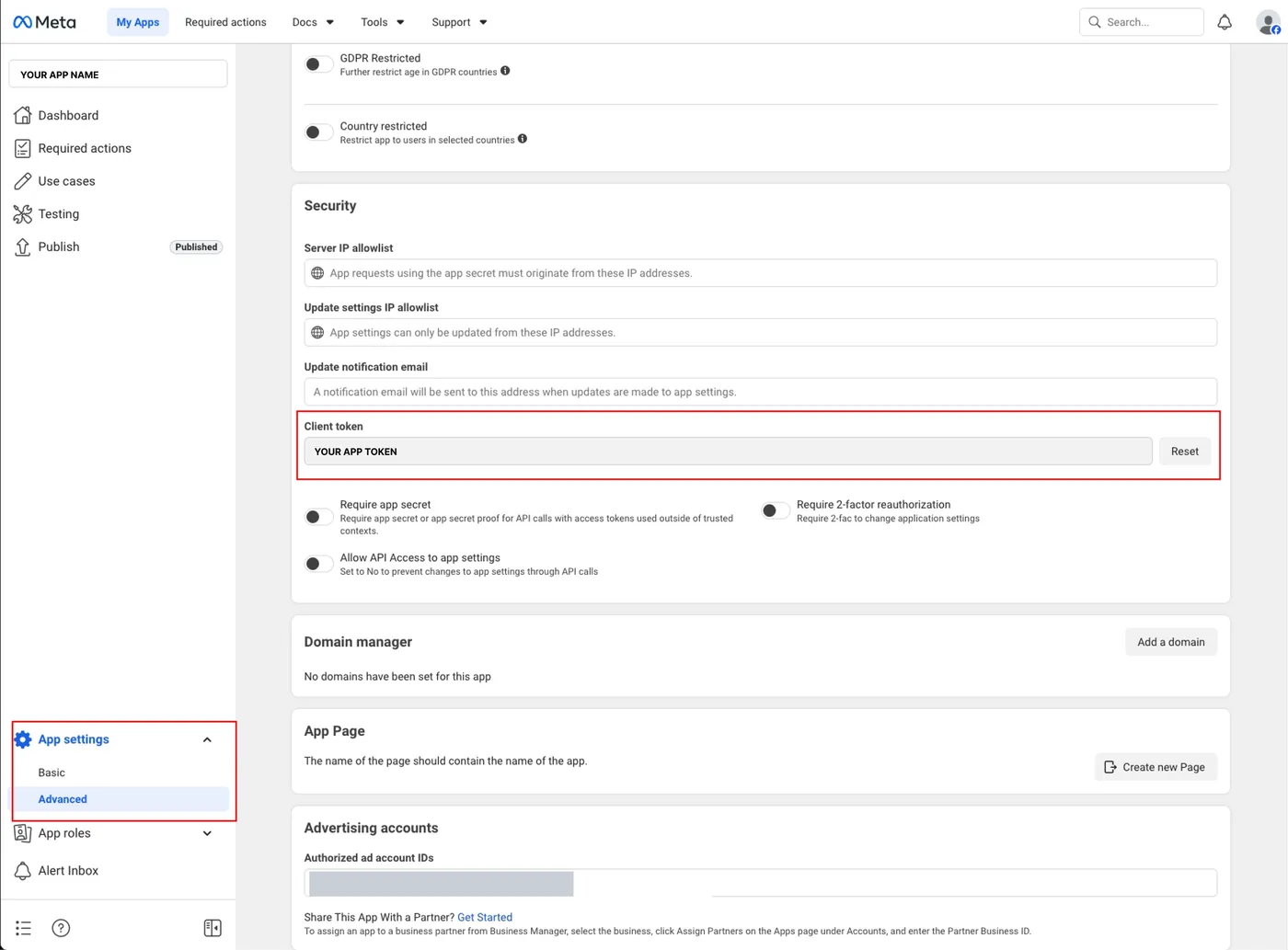
| Client Token | developers.facebook.com → Settings → Advanced → Security |
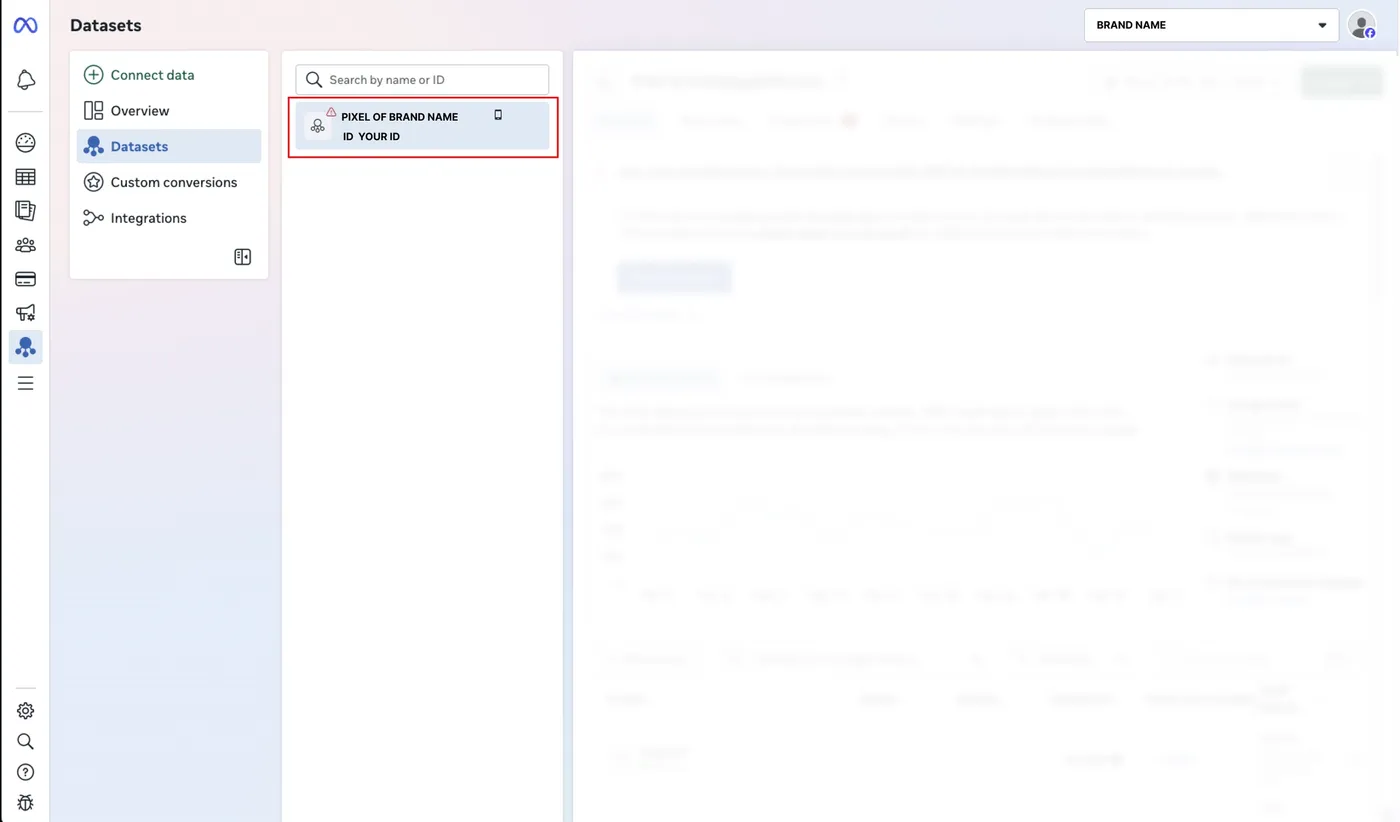
| Pixel ID | business.facebook.com/events_manager → Web data source |
App ID
Section titled “App ID”The App ID identifies the application on the Meta platform.
- Go to developers.facebook.com/apps with the developer account.
- Select the app from the list.
- In the left side menu, go to Settings → Basic.
- The App ID appears at the top of the page.
App name
Section titled “App name”It is the official name of the app as registered on Meta.
- Go to developers.facebook.com/apps and select the app.
- In the side menu, go to Settings → Basic.
- The Display name appears in the first field of the form.
Client Token
Section titled “Client Token”The Client Token authenticates calls to the Meta API without the user needing to be signed in. It is required for the SDK to send events correctly.
- Go to developers.facebook.com/apps and select the app.
- In the side menu, go to Settings → Advanced.
- Scroll down to the Security section.
- Find the Client token field and copy its value.
The Client Token is not the App Secret. They are two different values and only the Client Token needs to be provided.
Pixel ID
Section titled “Pixel ID”The Pixel ID connects the WebView events with Meta, especially if the Facebook JavaScript SDK is used inside the WebView.
- Go to business.facebook.com/events_manager.
- The left panel shows the list of data sources.
- Select the Web (pixel) data source associated with the app. If it does not exist, click Connect data sources → Web → Facebook Pixel.
- The Pixel ID appears under the name of the source in the left panel, or in the Settings tab of that source.
The Pixel ID is different from the App ID. The App ID identifies the native app and the Pixel ID identifies the web and WebView event source.
Which module field each value is
Section titled “Which module field each value is”| Meta value | Facebook Login | Facebook Events |
|---|---|---|
| App ID | FB Login Key | Clave facebook |
| App name | — | Facebook App Name |
| Client Token | FB Login Client Token | Facebook Client Token |
| Pixel ID | — | Facebook Events Pixel ID |
These values are provided to Reskyt, which configures them in the module.