
Send test push notifications
Test notifications let you check how a notification looks and where it leads before sending it to your user base. They are sent from the backoffice with the Test audience, which only reaches devices registered as test devices.
The process has three parts: set the app’s PIN, register the phone, and send the notification.
1. Set the test PIN
Section titled “1. Set the test PIN”In the app, go to Settings and open the Test device section. The PIN is a 4-digit numeric code that authenticates the registration of test devices. Enter it in PIN Code and save it with Set PIN, or generate it automatically with the button next to it.

2. Register the phone as a test device
Section titled “2. Register the phone as a test device”Registration is done from the app installed on the phone:
-
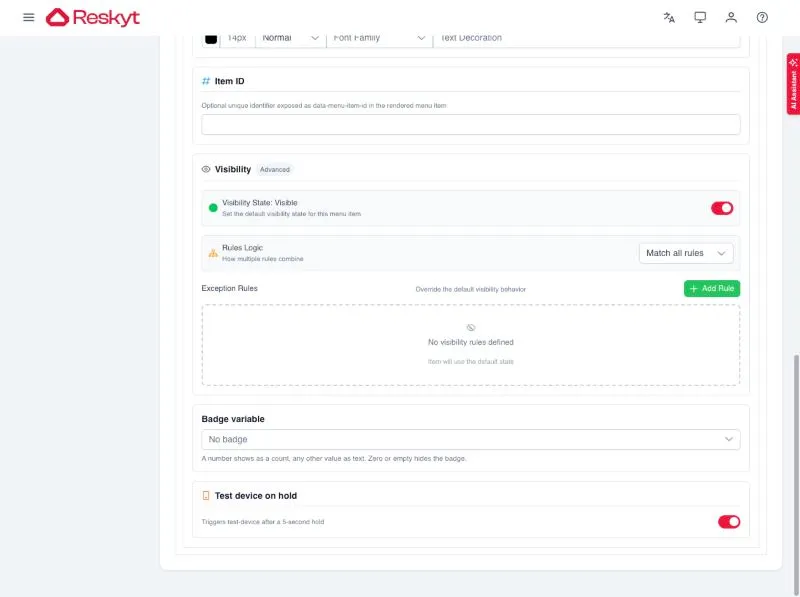
In Design, Navigation, turn on Test device on hold for the menu element that will open the registration, and publish the change. Until it is defined, there is no way to register a phone.
-
On the phone, press and hold that menu element for at least 5 seconds.
-
In the dialog that appears, enter a name for the device and the PIN, turn on the Test device option and tap Accept.
If the PIN does not match the configured one, the dialog shows Incorrect PIN and the device is not registered. When it is saved correctly, the message Test device data updated appears.
3. Send the test notification
Section titled “3. Send the test notification”In the app’s Notifications tab, click Send now. The wizard has three steps: Template, Audience and Confirm.
-
Template. Choose the notification you want to test. If it does not exist yet, create it first with Create notification. Content and languages are described in create a notification.
-
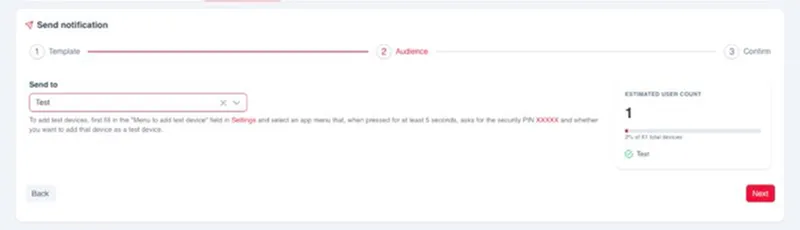
Audience. In Send to, select Test. The wizard explains how to add test devices and shows the estimated user count.
-
Confirm. The screen summarises the trigger, the template, the action on tap and the audience, together with the estimated recipients. The Inbox relevance is also set here, 7 days by default. To send, click Send notification.
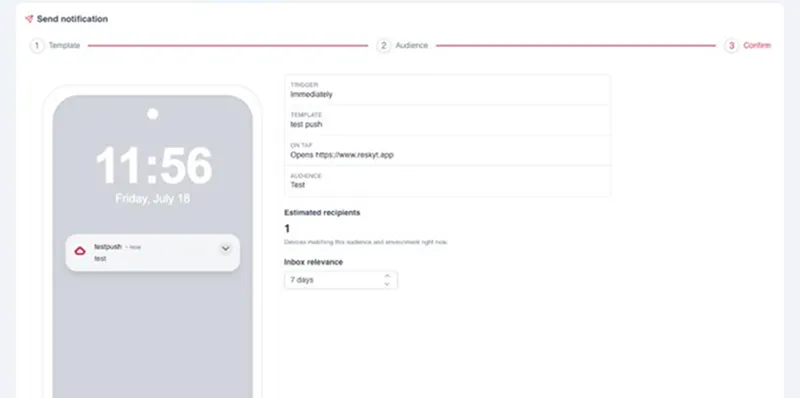
Check the count before sending. If it is 0, no test device is registered.
If the notification does not arrive
Section titled “If the notification does not arrive”The order of checks is in push diagnostics. To understand what identifies a device and why some stop receiving notifications, see users, devices and tokens.