
App menu
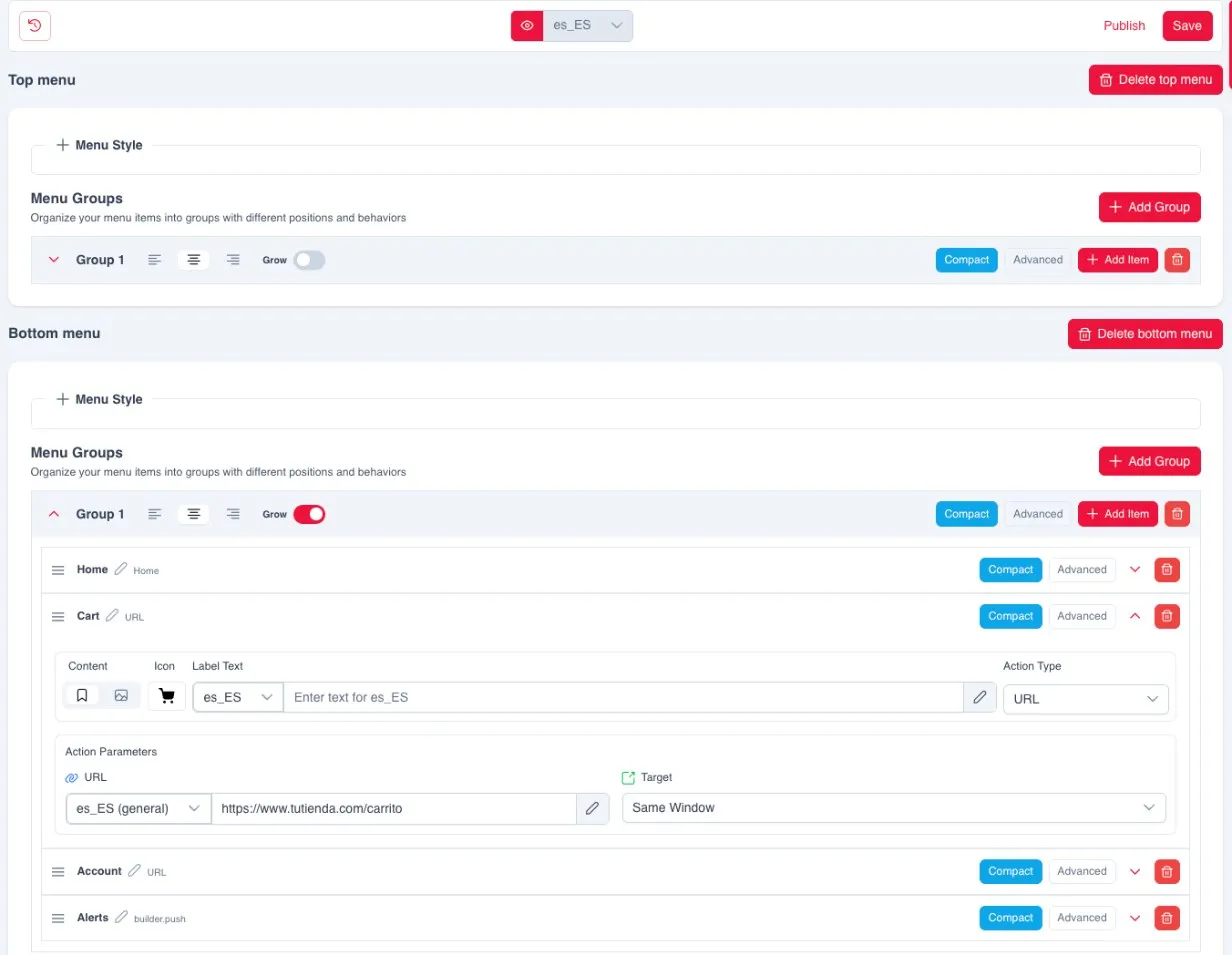
The app menu is configured in Design, Navigation. The bar at the top of the screen has the dropdown for the language being edited, the revisions icon and the Save and Publish buttons.
The two bars
Section titled “The two bars”The app has two menu bars: Top menu and Bottom menu. Each one can be removed with Delete top menu or Delete bottom menu. Both are configured in the same way, with two sections: Menu Style and Menu Groups.
Groups
Section titled “Groups”The items in a bar are organised into groups, which are added with Add Group. Each bar allows up to three groups, one per position: left, centre and right. The position is chosen with the group’s alignment icons.
When the centre group is the only one in the bar, Grow spreads it across the full width.
Each group has the Add Item button, the Compact and Advanced views and the bin to delete it. Items are ordered by dragging them.
Add and edit an item
Section titled “Add and edit an item”- In the group, click Add Item, or expand an existing item.
- In Content, choose whether the item shows an icon or an image, and select it in Icon.
- Enter the Label Text. There is one per language: change the language with the field’s dropdown.
- Choose the Action Type, which defines what the item does when tapped.
- Fill in the Action Parameters that type requires.
Action types
Section titled “Action types”| Action type | What it does |
|---|---|
| URL | Opens a page of your website. The basket or the account are also URLs of your store. |
| Reskyt URL | Opens full screen a page created in Design. |
| Menu | Opens a page from Design as a side drawer over the current screen. |
| Home | Goes back to the app’s home page. |
| Back | Goes back to the previous screen. |
| Submenu | Opens a group of options. |
| Notifications | Opens the notification inbox. |
| Localization | Opens the country and language selector. |
| Search | Opens a search bar that leads to your website’s search. |
| Share | Shares the current page. |
| None | Does nothing. Useful for titles or separators. |
A new page created in Create and edit pages is only accessible if it is linked from the menu, with Reskyt URL or Menu, or from another page.
A menu item can also be used to register a phone as a test device by pressing and holding it; the process is in send test push notifications.
URL per zone and language, and target
Section titled “URL per zone and language, and target”In an item of type URL, there are two Action Parameters:
- URL: the address that opens, for example
https://www.yourstore.com/cart. It can be different per zone and language: choose the combination in the field’s dropdown and enter the URL for each one. - Target: whether the page opens inside the app (Same Window) or in the system browser (New Window).
Save and publish
Section titled “Save and publish”Save creates a new revision of the menu, but users only see what is published. For the changes to reach the app, click Publish. The details are in Preview and publish.