
Create and edit pages
Pages are created and edited in Design, Pages. The same editor is also used for landings and popups.
Create a page
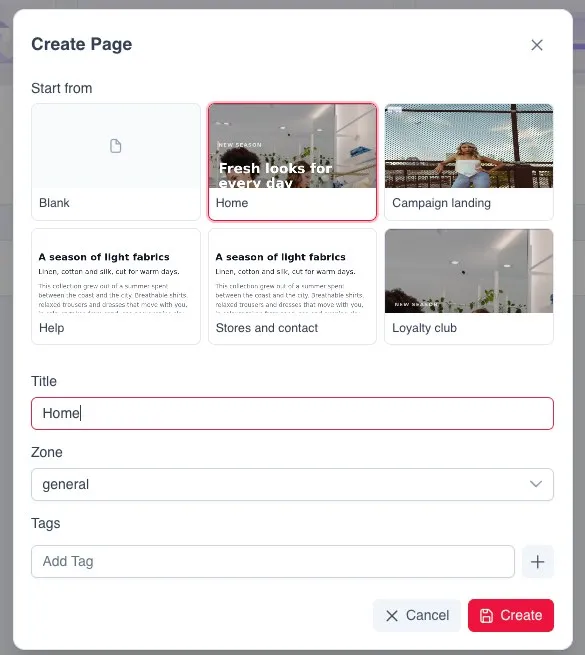
Section titled “Create a page”- In Design, Pages, click Create in the Pages block.
- In Start from, choose a template or Blank. Templates come already built with the colours of the app’s theme; Blank leaves the page empty. Template names are in English.
- Enter the Title. It is internal: the app user does not see it. When you choose a template, it may be filled in with a suggested title, which can be changed.
- Choose the Zone. If the dropdown is empty, close the dialog and click Create again.
- Add Tags if you need them and click Create.
The page is created as a draft and the editor opens.
Parts of the editor
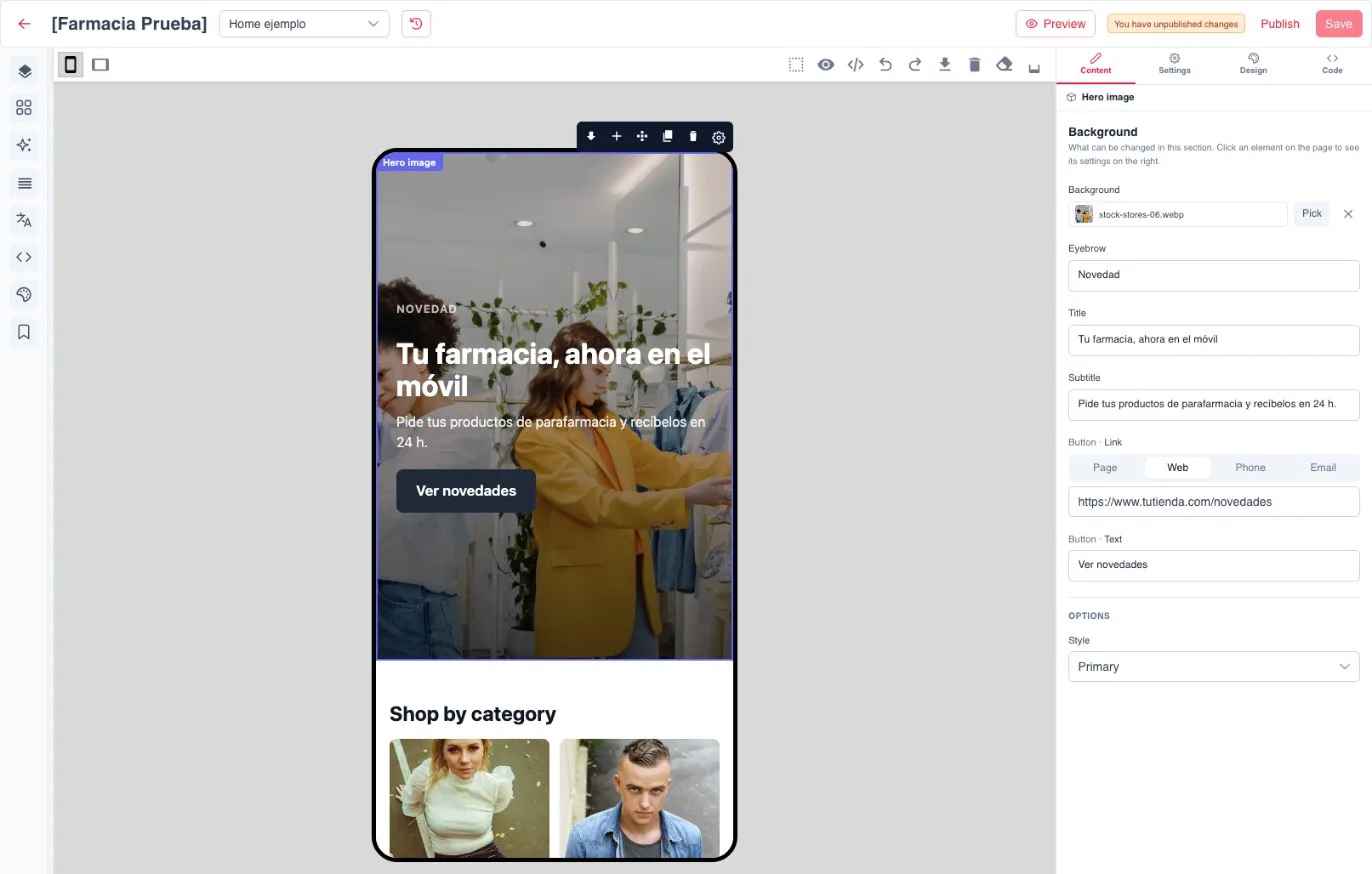
Section titled “Parts of the editor”| Area | What it contains |
|---|---|
| Top bar | Dropdown to switch page, Revisions, Preview, Publish and Save |
| Centre | Phone view of the page. Clicking a section selects it and shows a small bar with icons to add, move, duplicate and delete |
| Right panel | Content, Settings, Design and Code tabs |
| Left sidebar | Sections, translations panel and other panels |
Change texts, buttons and links
Section titled “Change texts, buttons and links”Select a section in the phone view. The Content tab shows a field for each editable element, in page order. Field names are set by the section and may be in English. Changes appear immediately in the phone view.
In a button, the link and the text are in separate fields. Text with formatting inside, such as bold or a link, appears as read-only in the form and is edited directly on the page.
A link can be one of four types:
| Type | What it does |
|---|---|
| Page | Opens another page of the app |
| Web | Opens a URL, for example https://www.yourstore.com |
| Phone | Calls a number |
| Opens an email |
Images and carousels
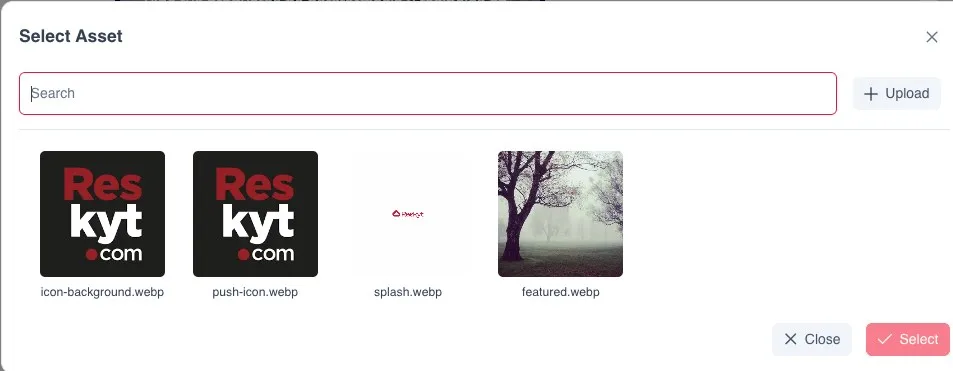
Section titled “Images and carousels”To change an image, click Pick in its field; the X removes it. The image picker opens, with a search box, the Upload button and the images already uploaded to the app. Choose one and click Select.
Images and videos also have a description field, which is read by screen readers.
Lists, such as the slides of a carousel, the items of a gallery, the questions of an accordion, steps or tabs, are shown as a list of items, each with its own form. From there they are added, removed and reordered. Carousel options, such as navigation or slides per screen, are in the form itself.
Add, duplicate and delete sections
Section titled “Add, duplicate and delete sections”- Select the section after which you want to insert the new one.
- Click + in the small bar. Add a section opens.
- Choose a category or use the search box and click the section you want.
The new section is inserted after the selected one, or at the end, and takes the theme’s colours. Once inserted, it is regular page content: later changes to the section library do not modify it.
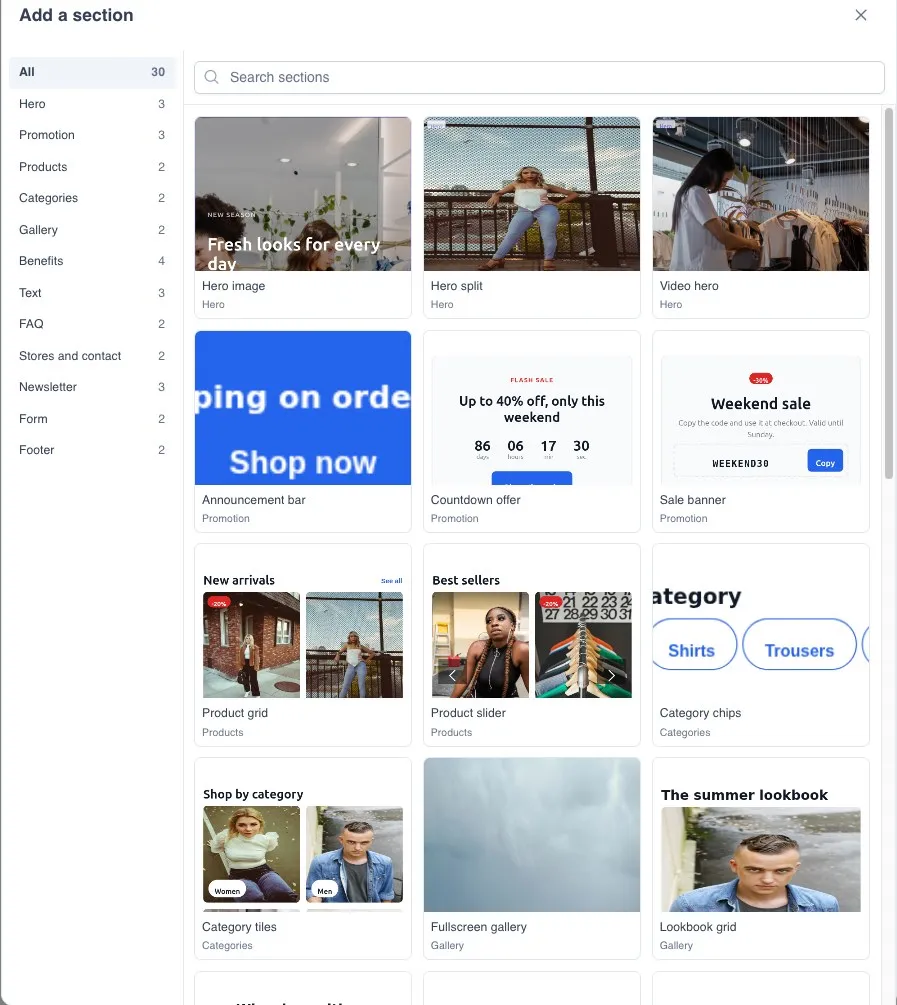
The categories are Hero, Promotion, Products, Categories, Gallery, Benefits, Text, FAQ, Stores and contact, Newsletter, Form and Footer.
To duplicate or delete a section, select it and use the copy icon or the bin in the small bar. Some parts of a section may come locked so as not to break the design: they cannot be moved or deleted, or they do not appear in the form.
When you are done, save and review the page as explained in preview and publish.