
Popups and presentation screens
A popup is a page that appears full screen on top of the app when it opens. It has no size or position setting: it always takes up the whole screen. It is edited with the same editor as pages, described in Create and edit pages.
Create a popup
Section titled “Create a popup”- Go to Design, System pages and, in the HTML popups block, click Create.
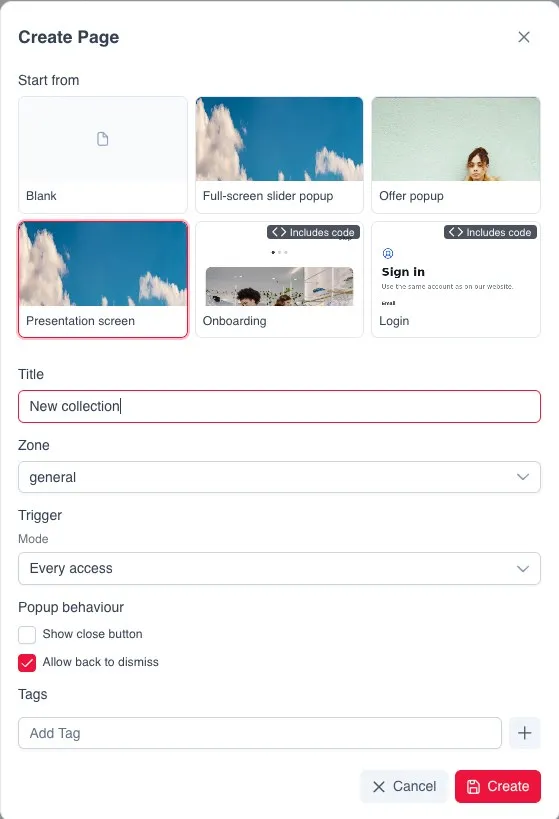
- In the Create Page dialog, choose a template in Start from or leave Blank.
- Enter a Title. It is internal: the app user does not see it.
- Choose the Zone. It is required, and the popup is only shown to users in that zone.
- In Trigger, choose the Mode.
- In Popup behaviour, adjust the closing options.
- Add Tags if they help you organise the content.
When it is shown
Section titled “When it is shown”| Mode | When it appears |
|---|---|
| Every access | Once per session, every time the app is opened |
| Once | Only once per installation |
| Every N days | Again when N days have passed since the user closed it |
| Manual (via API only) | Never appears on its own: the app’s code opens it |
A popup counts as seen when the user closes it, not when it opens. Only published popups from the user’s current zone are shown.
How it is closed
Section titled “How it is closed”The user can close the popup in three ways:
| Way | Option |
|---|---|
| Close button | Show close button, unchecked by default |
| Back | Allow back to dismiss, checked by default |
| Tapping a link in the popup | — |
Several popups
Section titled “Several popups”If there are several popups, they appear one after another in the order of the list. The order is changed by dragging the popups in the list.
Presentation screen
Section titled “Presentation screen”The Presentation screen template creates a screen with one or more full-screen images that open a link when tapped. If there are several, they slide.
In the content form you change the images and links and add or remove slides. In Settings you configure the navigation, autoplay, looping and the dates of each slide.
Each slide can have Visible from and Visible till, in the device’s local time. Outside those dates, the slide is not shown.
To show several presentation screens in a row, create several popups and order them. To rotate images within the same screen, use several slides.
Checking it
Section titled “Checking it”The preview does not show startup popups, so as not to cover the page being reviewed. Publishing is explained in Preview and publish.