
Landings
A landing is a page that opens from a push notification or from a deep link. It differs from a regular page in two ways:
| Page | Landing | |
|---|---|---|
| Zone | Only visible in the assigned zones | Has no zone: it is generated for all the app’s languages |
| Menu | Linked from the menu or from another page | Not in the menu |
Otherwise, a landing is edited with the same editor as pages, described in Create and edit pages.
Create a landing
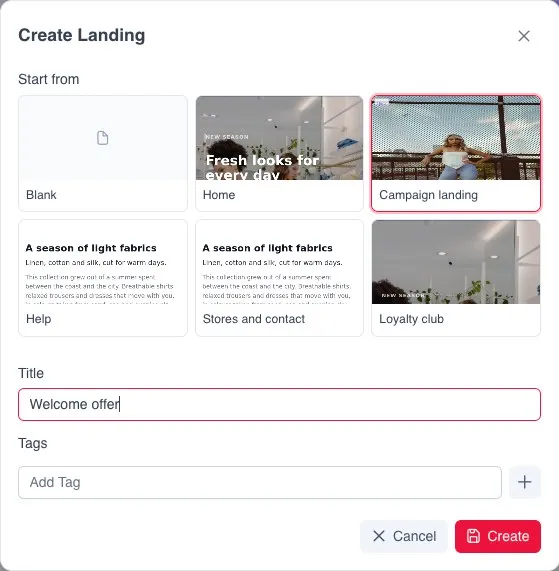
Section titled “Create a landing”- Go to Design, Pages and, in the Landings block, click Create landing.
- In the Create Landing dialog, choose a template in Start from or leave Blank.
- Enter a Title. It is internal: the app user does not see it.
- Add Tags if they help you organise the content.
Example: coupon with a countdown
Section titled “Example: coupon with a countdown”A landing with a discount code and a countdown is built with the Countdown offer section of the Promotion category. To add it, use Add a section in the editor and, in the section’s form, fill in:
- The discount code.
- The countdown labels: days, hours, minutes and seconds.
- The message shown when it ends.
- The button’s link and text.
- The end date (Ends on) and what happens when it is reached.
Translations
Section titled “Translations”Texts, images, descriptions and links can be changed per language from the editor’s translations panel, as on a page. If the landing is in a single language, the panel offers the option to translate the page.
Use it in a push notification
Section titled “Use it in a push notification”A push cannot lead to a landing that is not published. Before sending the notification, publish the landing as explained in Preview and publish.
Then, when creating the notification, choose the Landing type and select the landing in the form. The rest of the process is in Send push notifications.