
Notifications from Shopify
The Notifications section of the Reskyt app in Shopify lets you send news or offers to the customers who use the app without leaving the Shopify admin. Automatic order notifications and campaigns launched from a workflow are set up with Shopify Flow.
Before you start
Section titled “Before you start”The push API key has to be saved in Settings, as explained in Notifications with Flow. Without a key, the section shows the Push API key missing notice with a Go to Settings button.
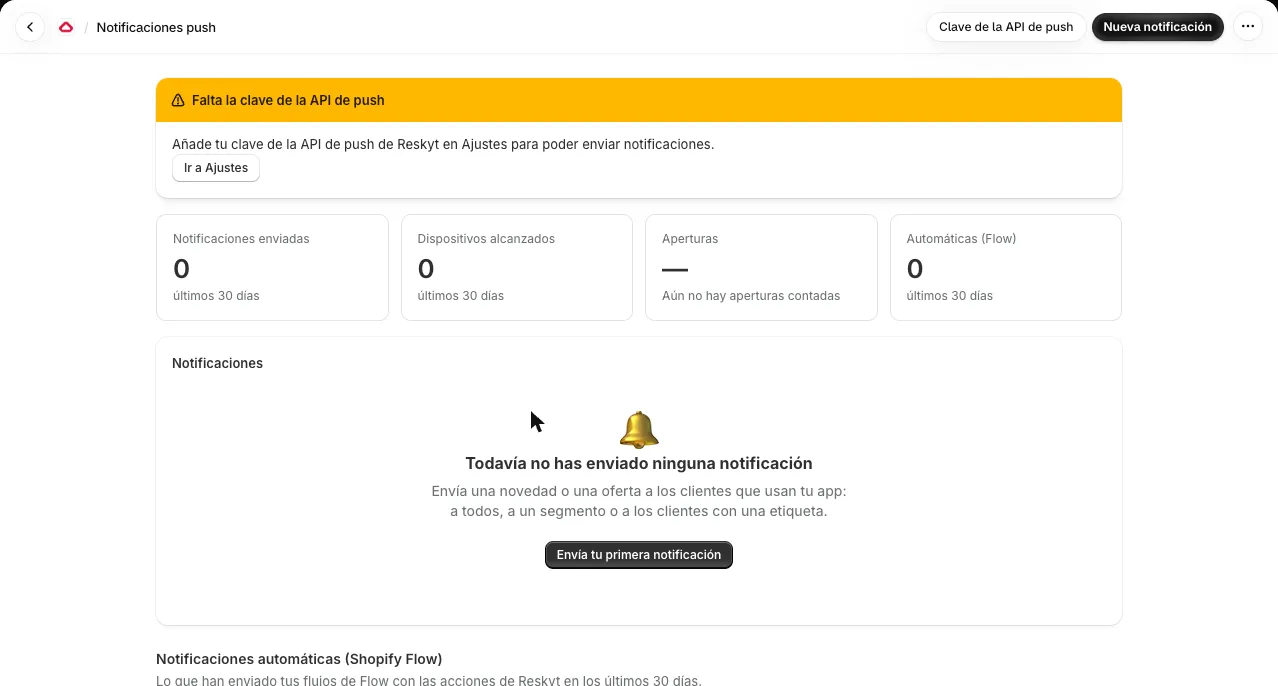
The main screen shows:
| Element | What it shows |
|---|---|
| Notifications sent | Total for the last 30 days |
| Devices reached | Devices the send reached |
| Opens | Opens counted and percentage of the devices reached |
| Automatic (Flow) | Sends from Shopify Flow workflows |
| Notifications table | Audience, date, status and opens of each send |
Opening a notification shows its message, its result and the audience reached. Any sent notification can be duplicated: a copy opens in the editor and nothing is sent until you click the button.
Create a notification
Section titled “Create a notification”Click New notification. The editor has a side summary with the message, the audience, the calculated reach and the expiry.
Message
Section titled “Message”| Field | Description |
|---|---|
| Headline | Optional. Short text above the message |
| Message | The notification text |
| Link | Optional. Without a link, the notification opens the store’s home page |
| Image | Optional. You upload a PNG, JPG, WEBP or GIF file of up to 2 MB, or paste the link of an image from Shopify Files |
| Expires in (hours) | Optional. Without a value, the notification expires after 7 days |
Uploading images needs a Shopify permission. If the app says it is missing, open it from the Shopify admin, approve the permission update and try again.
Audience
Section titled “Audience”Each send uses a single audience type.
| Audience | Who receives it |
|---|---|
| All customers with the app | Customers who have used the app |
| A customer segment | A segment created in Shopify, under Customers → Segments |
| Customers with a tag | Customers who have that tag and have used the app |
When to send
Section titled “When to send”| Option | How it works |
|---|---|
| Now | Sent as soon as you confirm |
| Schedule for later | Date and time in the browser’s time zone, between 2 minutes and 30 days from that moment |
Before sending or scheduling, the app asks for a confirmation with the estimated reach. In a scheduled send, the audience is calculated at send time, not when scheduling, and it can be cancelled until then with Cancel scheduling. If the scheduled time passes without it being sent, the notification is marked with that reason.
Opens are counted when the notification carries a link to a page of the store. If the link points elsewhere, the open is not measured and the app says so. “Sent” means Reskyt accepted the notification.