
Import a GA4 event as a conversion in Google Ads
If the app sends events to Google Analytics 4 through Firebase, you can import
any of them into Google Ads as a conversion action, for example purchase or
first_open. That way Google Ads can measure those actions and optimise your
campaigns’ bidding.
Before you start, the event must be marked as a key event in GA4, in Admin, Events. The following steps are done in your Google Ads account.
1. Create the conversion action by import
Section titled “1. Create the conversion action by import”- In the side menu, go to Goals, Conversions, Summary.
- Click + New conversion action.
- Select Import.
- Choose Google Analytics 4 (GA4) properties as the source.
- Select the app’s GA4 property and click Continue.
2. Select the event
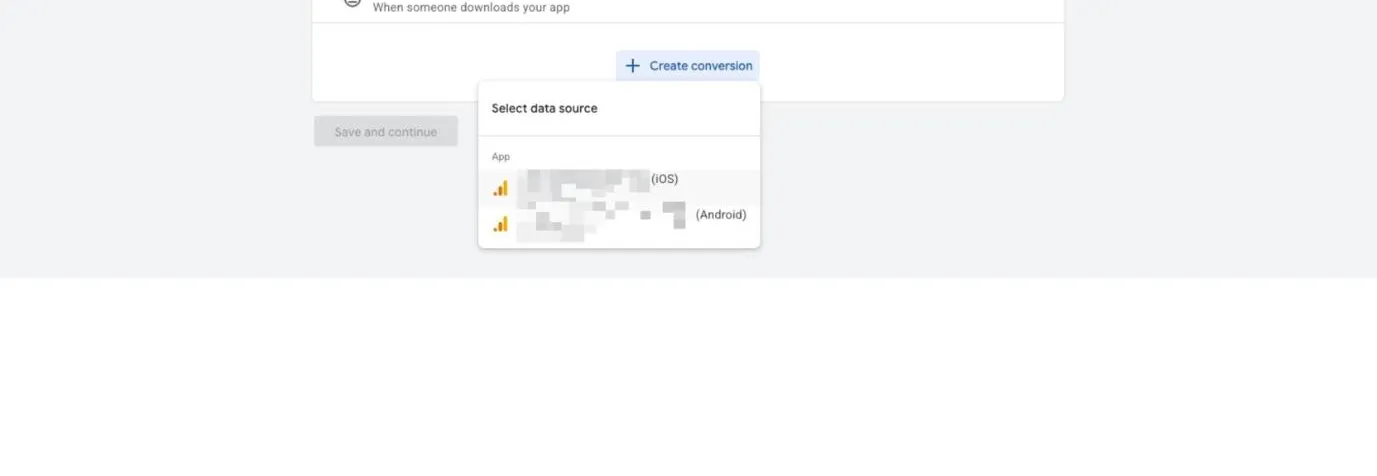
Section titled “2. Select the event”You will see a list of the events available in the property, grouped by platform or data stream: Web, Android and iOS.
- Find the row with your event’s name and the right platform, for example
purchaseon iOS. - Tick that event’s checkbox.
- Click Import and Continue.
3. Configure the conversion action
Section titled “3. Configure the conversion action”On the configuration screen, set these fields:
| Field | Usual options |
|---|---|
| Goal category | The goal category: purchase, sign-up, lead or another. |
| Conversion name | Filled in with the event name and platform. It can be edited. |
| Value | The event’s value, recommended if the event includes value and currency, or a fixed value. |
| Count | Every, each conversion, or One, only the first per user. |
| Click-through conversion window | The period in which a conversion is attributed after a click. 30 days by default. |
| Engaged-view conversion window | Only applies if you use video ads. |
| Attribution model | Data-driven, recommended, or another model. |
| Include in “Conversions” | Turn it on if you want the conversion to count towards your goals and bid optimisation. |
Mark the action as Primary if you want it to count towards the account’s or campaign’s main goal, or as Secondary if you only want to observe it without it affecting automated bidding.
Click Save.
4. Confirm the import
Section titled “4. Confirm the import”Go back to Conversions, Summary. The new action appears with:
- Conversion source:
Mobile App (Firebase), orWebsiteif it is a GA4 web event. - Status: at first it may show No recent conversions or Needs attention, until data arrives.
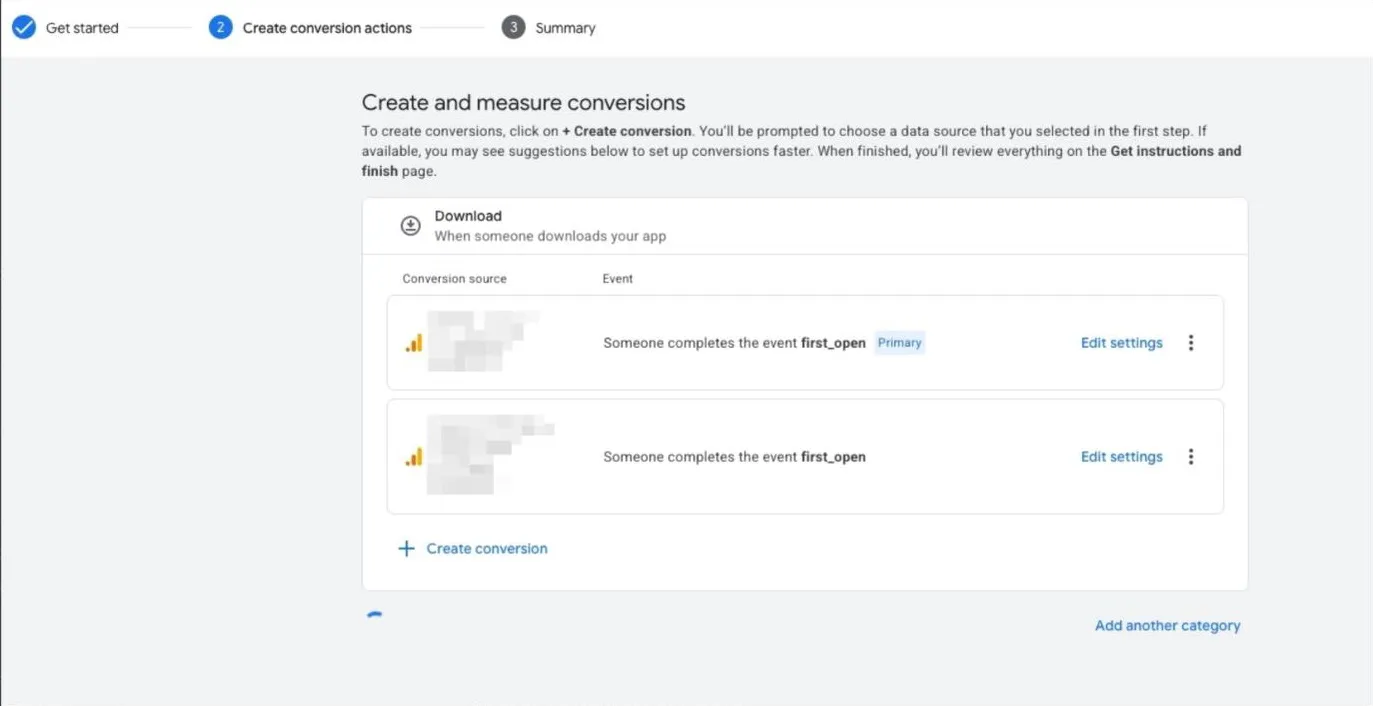
Data can take from a few hours up to 48 hours to start appearing.
Things to keep in mind
Section titled “Things to keep in mind”- If the event does not appear in the list in step 2, check that it is marked as a key event in GA4, in Admin, Events, and that at least a few hours have passed since it was marked.
- Each platform is a separate action. To import the same event from another
platform, for example
purchaseon iOS if you already have the Android one, repeat the process. They will appear as separate conversion actions. - On iOS the volume may be lower because of the platform’s attribution limitations. It is not a configuration error.