
Send history
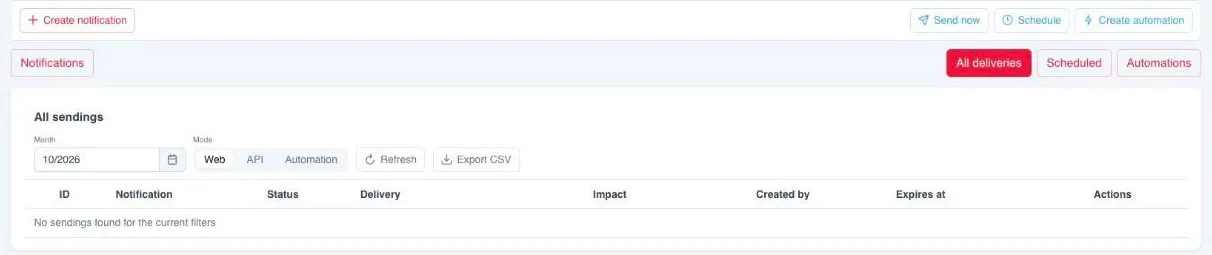
Every time a notification is sent, whether immediately, scheduled, from an automation or from the API, it is recorded as a send. Sends are checked in the app’s Notifications tab, in the All deliveries view.
Filters
Section titled “Filters”| Filter | What it does |
|---|---|
| Month | Shows the sends of the chosen month. By default, the current one. |
| Mode | Shows sends by origin: Web, those made from the backoffice, including scheduled ones; API, those made from the API; Automation, those generated by automations. Web by default. |
Refresh reloads the list, and Load more shows older sends from the same month.
Columns
Section titled “Columns”| Column | What it shows |
|---|---|
| Notification | The template sent. Clicking it opens the preview. |
| Status | Where the send is. See the status table. |
| Delivery | What share of the notifications has been sent and what share has been rejected. |
| Impact | What share of the sent notifications has been read. |
| Created by | Who made the send: the backoffice user, the automation or the API key. |
| Expires at | Until when it stays visible in the app’s notification inbox. |
Statuses
Section titled “Statuses”| Status | What it means |
|---|---|
| Dispatched | The send is being prepared. |
| Sending | The notifications are going out. |
| Completed | The send has finished. |
| Failed | The send could not be completed. Hovering shows the reason. |
| Cancelled | The send was cancelled. |
| Expired | The send has expired. |
Sent is not the same as delivered or read. The definition of each metric is in users, devices and tokens.
Change the expiry
Section titled “Change the expiry”The Edit expiry action in each row changes until when the notification stays visible in users’ inboxes, at most 60 days from that moment.
Export
Section titled “Export”Export CSV downloads the sends of a period in two formats:
| Format | Content |
|---|---|
| Summary | The notifications sent per day, split by origin: web, API and automation. |
| Detailed | One row per send, with its name, origin, author, status, sent, failed and read counts. |
If a notification does not arrive, the order of checks is in push troubleshooting.